
© 2026 Saad Web Designer | All Rights Reserved


Brooklyn, NYC
How to Connect a Website to a CRM System
Connecting a website to a customer relationship management (CRM) system allows businesses to send customer inquiries, contact details, and form submissions directly into one organized platform. Instead of checking emails and copying information manually, teams can manage leads, assign follow-up tasks, and track customer interactions from a central location.
Website CRM Integration can be set up through a built-in connection, a form integration, an automation tool, or a custom API. The right approach depends on your website platform, CRM software, technical requirements, and the way your business handles new inquiries.
This guide explains how website and CRM systems work together, which integration method to choose, and how to test the connection before relying on it for daily lead management.
What Is Website CRM Integration?
Website CRM integration is the process of connecting a website with a CRM platform so that information collected online can be transferred to the system automatically. The CRM stores and organizes customer records, helping businesses track inquiries and manage communication.
For example, suppose a visitor submits a quote request on a service company's website. Once the integration is configured, the visitor's name, email address, phone number, and inquiry details can be sent to the CRM without someone manually entering the information.
Depending on the setup, the system may also:
● Create a new lead or update an existing contact.
● Assign the inquiry to the appropriate team member.
● Record the page or campaign that generated the lead.
● Send an acknowledgment email.
● Create a follow-up task for the sales team.
The exact features depend on the CRM, website platform, and integration method.
Why Connect Your Website to a CRM System?
A website can attract visitors and generate inquiries, but those inquiries are only useful when a business can manage them properly. Connecting the website to a CRM helps turn incoming submissions into organized records and clear follow-up actions.
1. Capture Leads Automatically
Without an integration, staff may need to copy details from emails or spreadsheets into a customer database. This takes time and can lead to missing information or typing mistakes. An automated connection can transfer submissions directly into the CRM.
2. Improve Website Lead Management
A CRM helps businesses organize leads according to their source, needs, status, or assigned representative. A team can see which inquiries require a response, which prospects are waiting for a quote, and which contacts need further communication.
3. Support Timely Follow-Ups
A CRM can trigger notifications, create tasks, or send approved automated messages when a new inquiry arrives. These actions help teams maintain a consistent process instead of relying entirely on someone remembering to check an inbox.
4. Understand Where Leads Come From
When the integration preserves useful source information, businesses can compare inquiries from contact pages, landing pages, referral links, and marketing campaigns. This information can help them decide where to focus their marketing efforts.
Choose the Right Website-to-CRM Integration Method
Choosing the right CRM Integration for Websites depends on your website platform, CRM software, and business requirements. A small business may only need a contact form connected to its CRM, while a larger company may require custom workflows, lead assignment rules, and automated follow-ups. Before selecting a method, check compatibility, available features, and ongoing maintenance needs.
| Integration method | Best suited for | Main consideration |
|---|---|---|
| Native integration | Websites and CRMs with built-in connectors | Check available features and field support |
| CRM web form | Businesses that can use an embedded CRM form | Form appearance and customization may be limited |
| Automation platform | Connecting compatible apps without extensive coding | Check task limits, costs, and failure alerts |
| API or webhook | Custom workflows and more specific requirements | Requires careful configuration, testing, and maintenance |
Native Integration
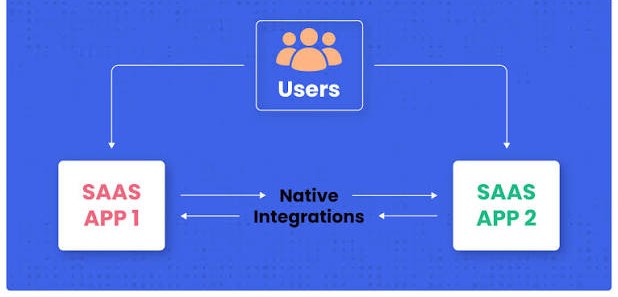
A native integration is a connection supported directly by the CRM, website platform, or form plugin. You usually select the relevant account, authorize access, and choose which information should be synchronized.
This is often a practical starting point for small businesses because it reduces custom development work. However, confirm that the connector supports your required fields, consent information, and workflow rules.
Embedded CRM Forms
Some CRMs let users create a form inside the CRM and embed it on a website. When a visitor submits the form, the CRM receives the information according to its configuration.
For example, Zoho CRM provides web forms that can create records and support options such as field selection, assignment rules, and notifications. Review the official Zoho CRM web forms documentation before setting up this option.
Automation Platforms
Automation tools connect applications through predefined triggers and actions. A form submission can trigger an action that creates or updates a CRM record.
This method can be useful when your website form and CRM do not have a direct integration. Before choosing it, check whether the tool supports the applications you use and whether its pricing, data handling, and task limits suit your business.
API or Webhook Integration
An API allows applications to exchange information through defined requests and responses. A webhook sends data to a specified endpoint when a particular event occurs, such as a form submission.
These methods are useful when a business needs custom field mapping, specific routing rules, or connections that existing integrations cannot provide. They may require a developer to configure authentication, validate incoming data, handle errors, and protect customer information.
How to Connect a Website to a CRM System Step by Step
The following process works as a general guide. Exact menu names and settings vary between website builders, form plugins, and CRM platforms.
Step 1: Identify Your Website Forms and CRM Requirements
Contact form CRM Integration Allows businesses to send visitor details and inquiry messages directly from a website form to their CRM. To set it up correctly, identify the required form fields, match them with the corresponding CRM fields, and decide how new inquiries should be assigned. Test a submission before publishing the connection to make sure the information reaches the correct record.
Decide what should happen after each submission. For example, a quote request may need to create a sales lead, while a newsletter sign-up may belong in a marketing contact list. Make a list of the fields you need, the team responsible for each inquiry, and the follow-up action required. This planning prevents unnecessary data collection and helps you select the right integration.
Step 2: Check CRM Compatibility
Confirm that your CRM can connect with your website platform or form plugin. Look for an official connector, an embeddable form, a supported automation tool, or documented API access.
Also check the limitations of your CRM plan. Some features, including automation, advanced integrations, or API access, may depend on the subscription level.
Step 3: Connect the Website and CRM
Follow the setup instructions for your chosen method.
For a native integration, you may need to install a connector, sign in to your CRM, and authorize access. For an embedded form, create the form inside the CRM and add its supplied embed code to the relevant website page.
If you use an automation platform, connect both applications and configure the form-submission trigger and CRM action. For a custom integration, a developer may need to configure a server-side process that sends validated form data to the CRM.
Step 4: Map the Form Fields Correctly
Field mapping determines where each website value is stored in the CRM. Incorrect mapping can cause missing details or inaccurate records.
For example, map the website's email field to the CRM email field, the phone number to the phone field, and the inquiry message to the appropriate notes or description field.
Check these details before publishing:
● Required fields are mapped to the correct CRM fields.
● Phone numbers and dates use accepted formats.
● Lead source and consent information are preserved where relevant.
● Optional fields do not cause submissions to fail when left blank.
● Existing contacts are handled according to your duplicate-record rules.
Step 5: Configure Lead Assignment and Follow-Ups
Decide who should receive each type of inquiry. A service request may need to go to a particular department, while a general question may go to a shared sales queue.
Where supported, configure notifications, task creation, or follow-up workflows. Keep automated messages accurate and relevant, and make sure marketing emails follow the consent requirements that apply to your business.
Step 6: Protect Customer Data
Website forms collect personal information, so security needs to be part of the integration rather than an afterthought.
Use HTTPS, restrict access to CRM records, and collect only information your business genuinely needs. Add suitable spam protection, such as CAPTCHA where appropriate, and review how consent and privacy requests are handled.
For custom API integrations, keep private API keys and other privileged credentials on the server rather than exposing them in browser-side code. Follow the CRM provider's authentication and security documentation.
Step 7: Test the Entire Process
Before relying on the integration, submit test entries using realistic but non-sensitive test data. Check that each submission reaches the correct CRM record and triggers the intended workflow.
Verify the following:
1. The form submits successfully on desktop and mobile.
2. Every field appears in the correct CRM location.
3. Duplicate submissions follow your intended rules.
4. Lead assignment and notifications work as expected.
5. The visitor sees a clear success or error message.
6. Failed transfers can be identified and corrected.
Test unusual cases too, such as optional fields left empty or an email address entered in the wrong format. Fix any problems before treating the integration as ready for regular use.
Common Website CRM Integration Problems
Even a correctly selected integration can fail if its configuration is incomplete. A few checks can help identify common issues.
Missing or Incorrect Lead Data
This often happens when field names do not match, required CRM fields are empty, or the form sends data in an unexpected format. Review the field mapping and submission logs to identify where information is being lost.
Duplicate Contacts
A visitor might submit a form more than once, or the CRM may create a new record even when the contact already exists. Configure duplicate detection or matching rules where available, and decide whether repeat inquiries should update an existing record or create a separate activity.
Failed Notifications
A CRM record may be created successfully even if an email or internal alert fails. Test record creation and notifications separately, and review the relevant logs or workflow history when something goes wrong.
Spam and Invalid Submissions
Public forms can receive automated or irrelevant submissions. Use appropriate validation and spam controls, and monitor incoming records for suspicious patterns. Avoid collecting unnecessary personal information simply to filter out spam.
Best Practices for Ongoing CRM Integration
Once the connection works, regular checks help keep it reliable as your business changes.
Review integration logs: Look for failed transfers and recurring errors.
Check after website updates: Changes to form plugins, fields, or page code can affect the connection.
Keep permissions limited: Give each integration only the access it needs.
Review data quality: Check for duplicates, incomplete records, and incorrect lead sources.
Monitor workflows: Make sure assignments and notifications still reflect your team's process.
Document the setup: Record which forms connect to which CRM objects, who manages the integration, and how to investigate failures.
If your website has several forms or a more complex sales process, a qualified developer can help assess the setup. A business looking for technical support may consider a Freelance Web Developer in New York if that location fits its service needs. The important consideration is whether the developer has relevant experience with your website platform, CRM, and data-security requirements.
Conclusion
Connecting a website to a CRM system helps businesses collect inquiries, organize customer information, and manage follow-ups in one place. The most suitable approach depends on the website platform, CRM capabilities, workflow requirements, and level of customization needed.
Start by identifying which forms should send data to the CRM, choose a compatible integration method, map fields carefully, and configure appropriate lead assignments. Then test submissions, notifications, duplicate handling, and security before relying on the connection.
A well-maintained integration should do more than transfer form entries. It should help your team respond consistently, keep customer records accurate, and make better use of the inquiries your website generates.
FAQ's
What is website CRM integration?
+Can I connect my website to a CRM without coding?
+How long does CRM integration take?
+Is website CRM integration secure?
+